


Troubleshooting and Configuring the Windows NT/95 Registry
-10-
Making Manual Changes to the Registry Using REGEDIT.EXE
Most users who have been using Windows NT for a long time have used REGEDT32.EXE, the Windows NT Registry Editor. Windows 95 users, or NT users coming from a Windows 95 background, however, have always used REGEDIT.EXE. The good news is that both are included with Windows NT 4.0, and you can use either. Windows 95 users don't have a choice.
There are significant differences, however, in the features that each possesses.
Each has its strengths and weaknesses, and most NT users will end up using both.
Table 10.1 compares REGEDT32 with REGEDIT.
Table 10.1. Comparison of REGEDT32 and REGEDIT.
| Feature | REGEDT32 | REGEDIT |
| All handle keys available | X | X |
| Edit current Registry | X | X |
| Edit local NT Registry | X | X |
| Edit local 95 Registry | X | |
| Remotely edit other NT Registries | X | X |
| Remotely edit other 95 Registries | X | |
| Export and import hives | X | X |
| Export hives as text | X | X |
| Tiled view of multiple handle keys | X | |
| Copy key name available | X | |
| Right mouse button support | X | |
| Single-click cascading of folders | X | |
| Print contents | X | X |
| Edit multiple string entries | X | |
| Security available on keys and values | X | |
| Auditing available on keys and values | X | |
| Search for keys | X | X |
| Search for values | X | |
| Search for data strings | X | |
| Read-only mode | X | |
| Change screen font | X | |
| Resource list entries as window | X | binary only |
REGEDT32.EXE focuses more on the high-security, hardware-level editing, whereas REGEDIT.EXE is designed for ease of use and broad appeal. Most tasks you perform can be done in REGEDIT.EXE with no problem, and, in many cases, it can be done more easily and quickly than with REGEDT32.EXE.
NOTE: REGEDIT.EXE and Explorer are very similar, much as REGEDT32.EXE and File Manager are similar. With REGEDIT.EXE and Explorer, all items are shown on one screen in one window, cascading with the plus signs outside the folder. Right mouse button support is extensive, and almost makes the inclusion of the menus redundant. The speed and ease of use are paramount, and features not considered crucial are not included. REGEDT32.EXE and File Manager both use multiple windows, allowing the cascading, tiling, and minimizing of windows to customize the look of the data. The folders look the same, the menus are more extensive than their newer counterparts, and they are feature-laden. Unfortunately, there is no right mouse button support. Security is a premium function and is prominently presented in the menus. Whatever your choice, both are outstanding editors. The inclusion of both indicates Microsoft's willingness to allow different work styles with NT.
Protecting the Registry with REGEDIT.EXE
The Registry is no less vulnerable with REGEDIT.EXE than with REGEDT32.EXE. Indeed, it may be more vulnerable because there is no read-only mode. Without a read-only mode, utmost care must be taken to protect the Registry from damage.
Back up the Registry with the tools listed in Chapter 4, "Protecting the NT Registry," and Chapter 6, "Protecting the Windows 95 Registry," or use the export features in REGEDIT.EXE as discussed later in this chapter.
Editing the Registry with REGEDIT.EXE
Run REGEDIT.EXE from the Start | Run menu. You will see all the handle keys represented on one screen. (See Figure 10.1.) Similar to the Explorer interface, REGEDIT.EXE is easy to use and straightforward in its procedures, and it's easy to understand the relationships between keys.
Figure 10.1. The interface of REGEDIT.EXE.
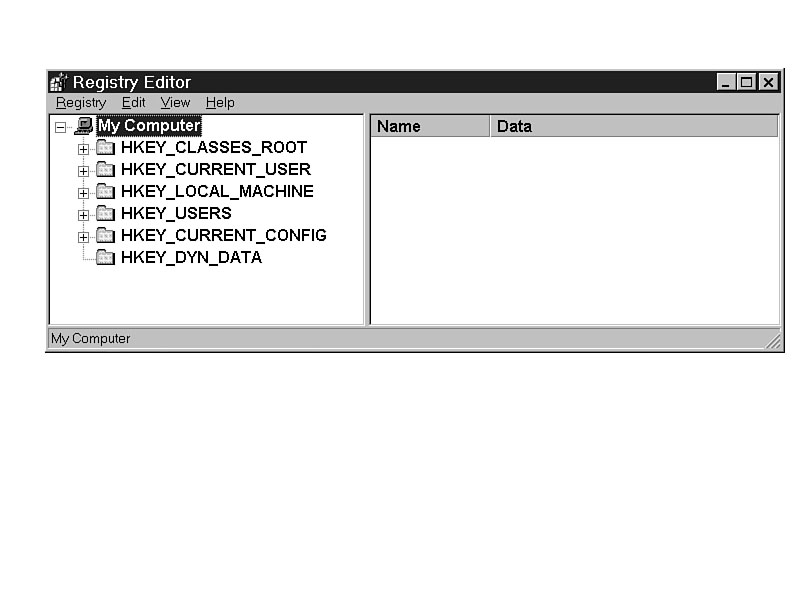
NOTE: Even though HKEY_DYN_DATA is shown, there is no configurable Plug and Play support in Windows NT 4.0. The handle key is inaccessible, but is included to maintain visual continuity with the editing of Windows 95 Registries.
The folders cascade and consolidate with a single-click on the plus (+) and minus (-) signs to the left of the key names. You don't even have to wait for the display of all the values in the key. To open the key and see inside, a single-click on the key name is required, as shown in Figure 10.2.
Figure 10.2. Cascaded folders in REGEDIT.EXE.
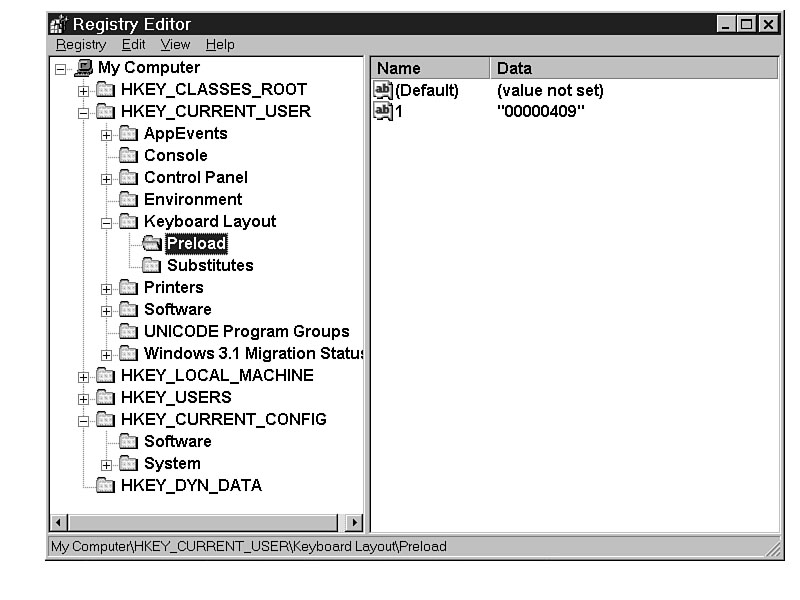
TIP: The full path to the key is shown in the status line at the bottom of the REGEDIT.EXE window. Having it there is handy; you don't have to remember the actual path. If you create documentation, use Edit | Copy Key Name rather than typing the whole name into text. Imagine the difference between typing HKEY_LOCAL_MACHINE\SOFTWARE\Microsoft\Windows NT\CurrentVersion\
Winlogon and just copying it. Also, when you start creating your own custom policies for System Policy Editor (see Chapter 34, "Creating Custom Policies"), copying the key name will reduce errors and improve performance.
Shortcut for Faster Collapsing of the Registry View
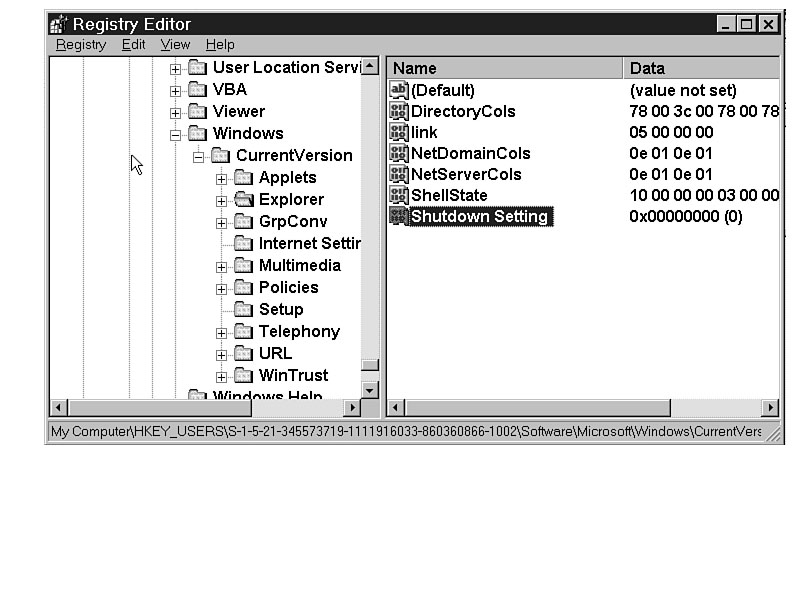
When the Registry is expanded, the connection to the parent key is shown with a dotted line, as illustrated in Figure 10.3. Although you can scroll up until you find the Collapse button, or you can collapse individual sections, it is faster to collapse entire trees.
Figure 10.3. Double-click the vertical line to collapse the tree.
Adding Keys to the Registry
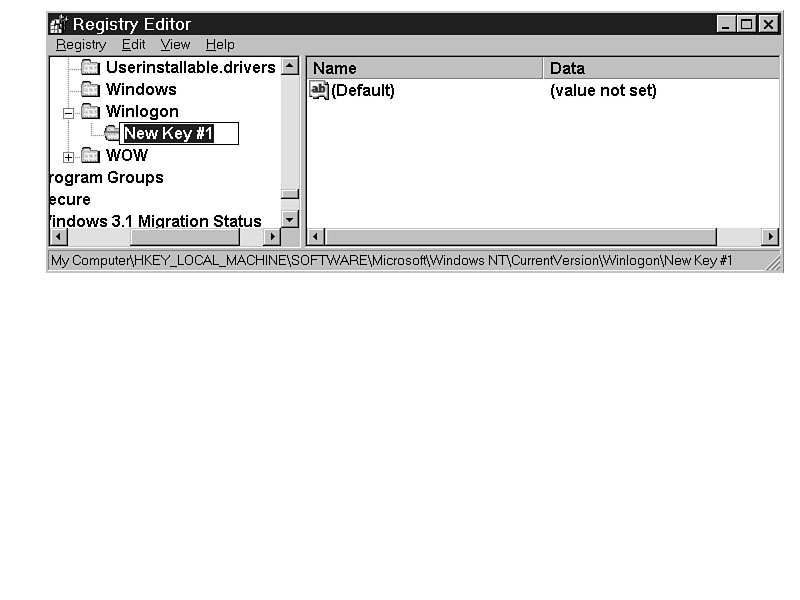
Additional keys can be added to the Registry by application installation routines, driver installation, or manually. To manually add a key below another, highlight the current key, select Edit | New | Key, and type the name. The new key will be cascaded below the current key, and a plus sign will be added to the left of the key name, as shown in Figure 10.4.
Figure 10.4. Adding a new key in REGEDIT.EXE.
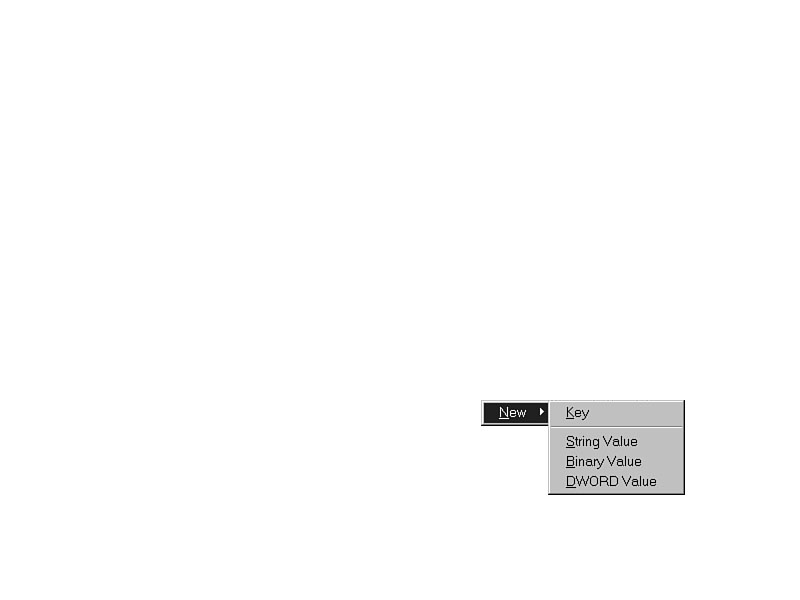
TIP: As in Explorer, right mouse button support is extensive in REGEDIT.EXE. Virtually all menu items can be accessed though the context-sensitive menus available when you right-click items in the window. Right-click the title bar for window options. (See Figure 10.5.) Right-click a key for options to expand or collapse the key view, create a new key, create new values in the key, delete or rename the key, copy the key name, or search for keys, values, or data. (See Figure 10.6.) Right-click a value to modify the data, or delete or rename the value name. (See Figure 10.7.) Right-click an open space in the right pane to make a new key, a new string value, a new binary value, or a new DWORD value. (See Figure 10.8.) The context-sensitive menus are an intuitive, fast, and easy-to-use alternative to wading through the pull-down menus.
Figure 10.5. Pop-up menu for the Registry Editor title bar.
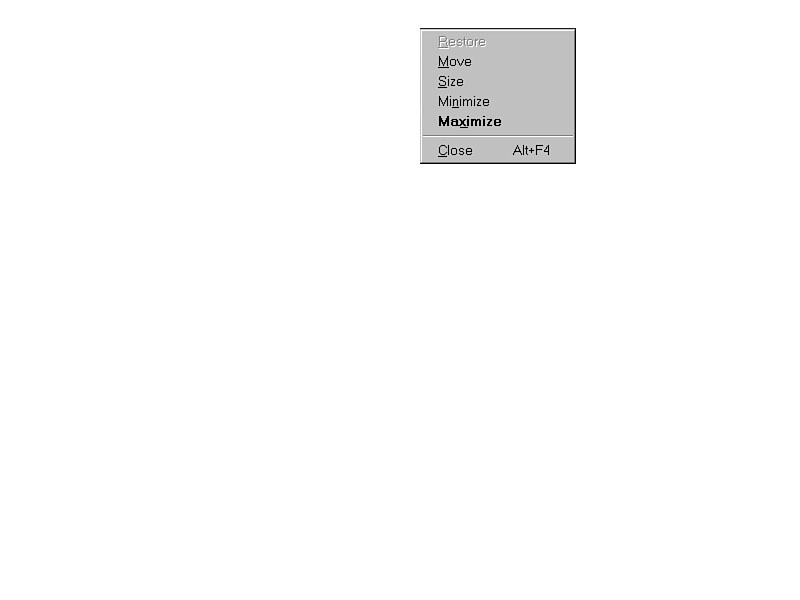
Figure 10.6. Pop-up menu for a Registry key.
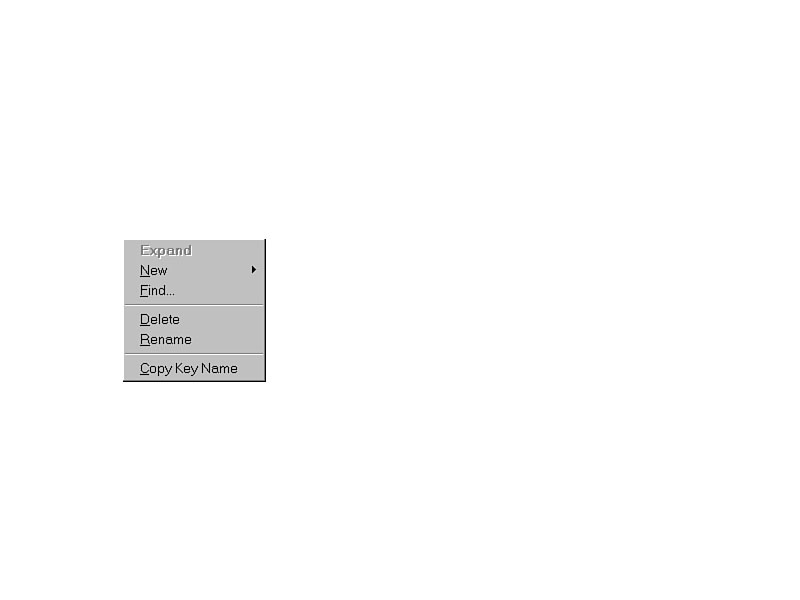
Figure 10.7. Pop-up menu for a Registry value.
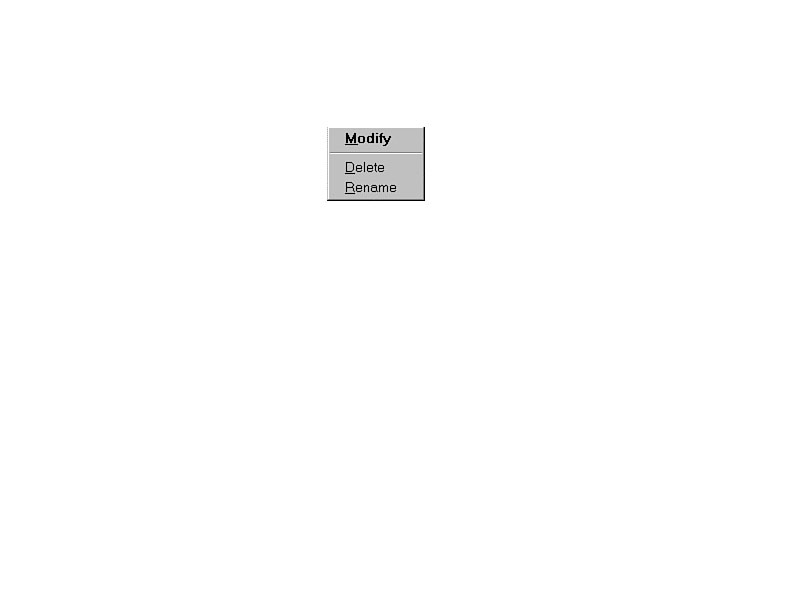
Figure 10.8. The general pop-up menu for the Registry Editor.
If the key or value name that you add is not supported in the Registry, it will not
be activated even though it is present. The key names are not case-sensitive, but
they are spelling-sensitive.
Values in REGEDIT.EXE
The values in the REGEDIT.EXE window are in the right pane, listed in alphabetical order, as shown in Figure 10.9.
Figure 10.9. Values in the Winlogon key.
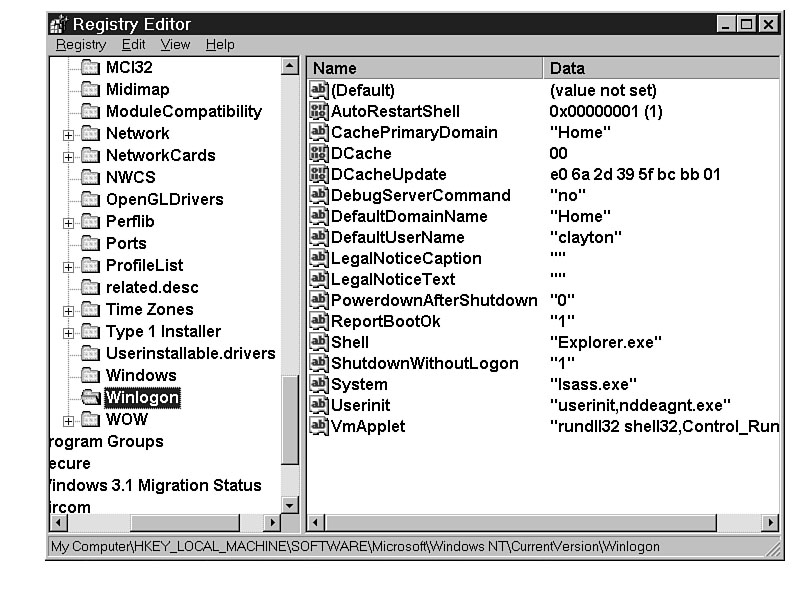
TIP: If the column of value names is too narrow to read effectively, position your cursor on the line between Name and Data. The cursor will change to a vertical line with a two-headed horizontal arrow. Grab the line and move it to the right to expand the column width.
REGEDIT.EXE only shows two value types: string and binary. String values include standard strings as well as expandable strings. Any variable (such as %systemroot%) is automatically considered expandable, so an additional editor is not required. Binary entries include both binary and DWORD entries, with binary being variable-length values, and DWORD being fixed-length 32-bit values. For more detail on value types, see Chapter 2, "The Structure of the Registry."
Adding Values to the Registry with REGEDIT.EXE
To add a new value to a key, right-click in any empty space in the right pane in the REGEDIT.EXE window. The right mouse button click brings up a menu choice to add either a string, binary, or DWORD value (refer to Figure 10.8).
Notice that the options do not include a multistring editor. That makes adding a multistring virtually impossible. There is also no specific entry for a variable string, assuming that a normal string editor will work the same. Any variable will automatically expand or contract the size of the string as necessary when replaced with the variable.
When you select the option to create a string value, REGEDIT.EXE responds with a new value, as shown in Figure 10.10.
Figure 10.10. A new value created with REGEDIT.EXE.
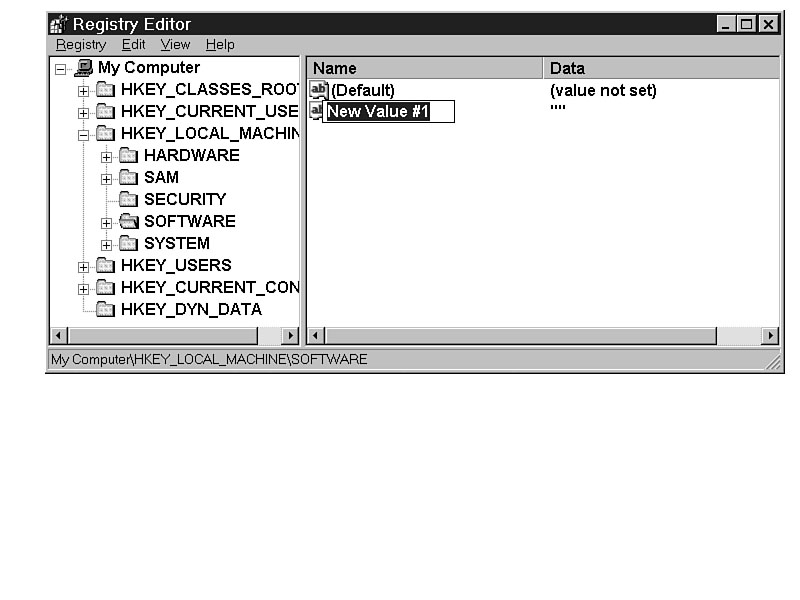
If you had chosen a binary or DWORD value instead, you would also have been prompted
for the value name. Only the representative icon and the underlying type would be
different. Type the name of the value and press Enter. The actual data in the value
is empty, requiring you to edit the new value entry. Double-click the new value to
edit it.
SOLUTIONS: How can I change the key name if I misspell it? If you misspell the key name, right-click it, select Modify, and correct the spelling.
Occasionally, you will be asked to add a default value for a key. A default value cannot be added to an existing key, but one is created with every new key.
WARNING: Never create a value without a name. A value without a name cannot be renamed or deleted. It should not create any problems to have it there, but it might.
Editing Values
To edit a value, double-click the value name or right-click it and choose Modify. (See Figure 10.11.) Choosing Modify allows you to change the data, not the name of the value.
Figure 10.11. Editing a string value.
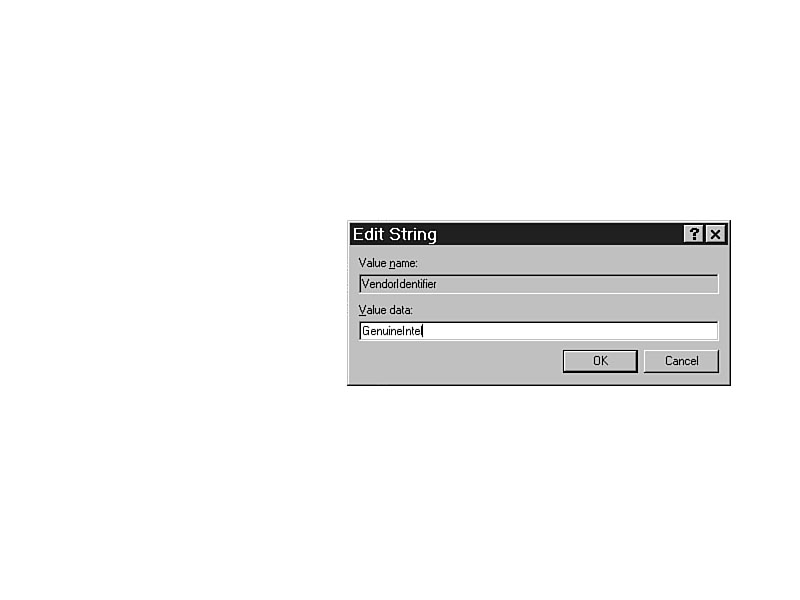
Enter the desired information in the Value data area. Text data is not case-sensitive.
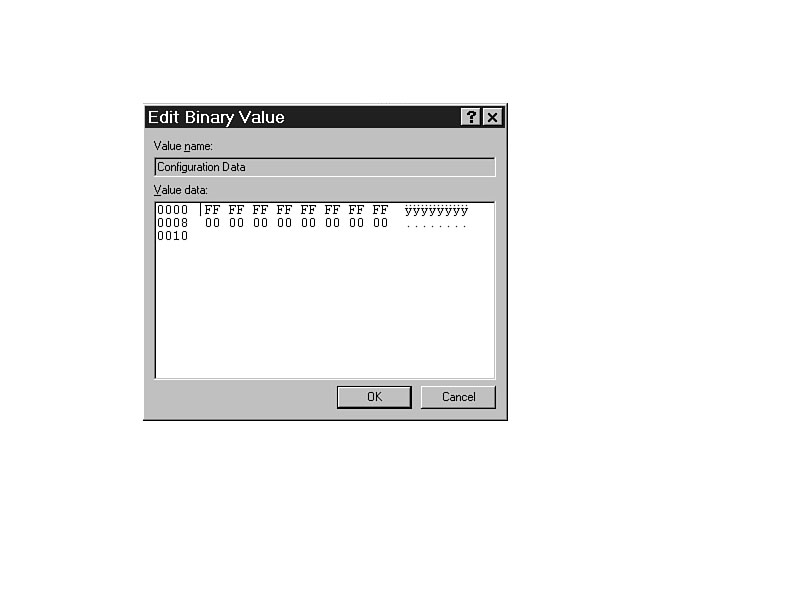
For binary data, it is important to ensure the correct spacing and completeness of
the data. Incorrect data can cause the value to be ignored, or worse yet, can cause
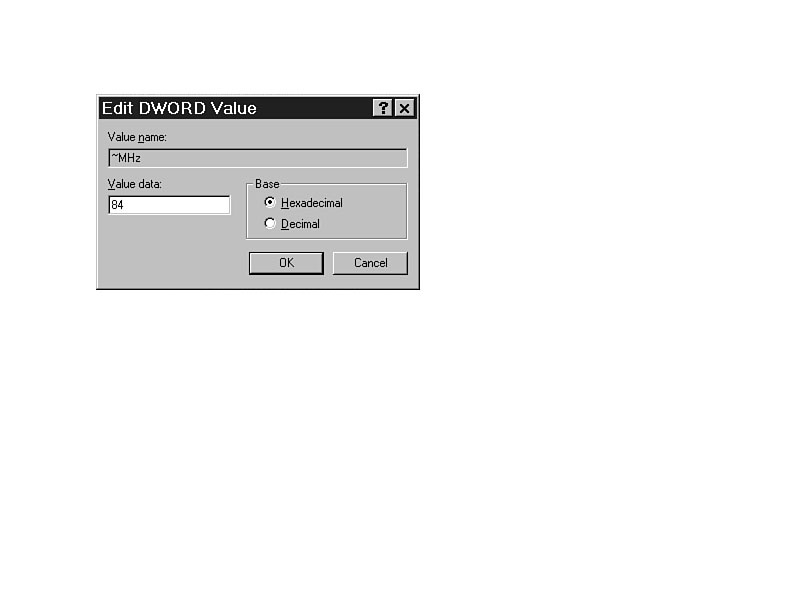
the system or application to become unstable. Figures 10.12 and 10.13 show the Binary
and DWORD editors, respectively.
To edit an expandable string, use the standard string editor and put your variables in as required. REGEDIT.EXE assumes any variable that is put into a string is going to be replaced by data, not used as literal text.
Figure
10.12. Editing a
binary value.
Figure 10.13. Editing a DWORD value.
WARNING: All changes to the Registry are immediate and permanent. There is no Undo feature, no discarding of changes at exit, and no temporary modifications. Any reconstruction of entries required because of mistakes must be done manually, or through the restoration of the Registry from a backup.
Finding Specific Entries in the Registries
Searching the Registry with REGEDIT.EXE is very powerful, much stronger than the search capabilities of REGEDT32.EXE. In REGEDIT.EXE, you can search for keys, value names, data, or any combination of the three.
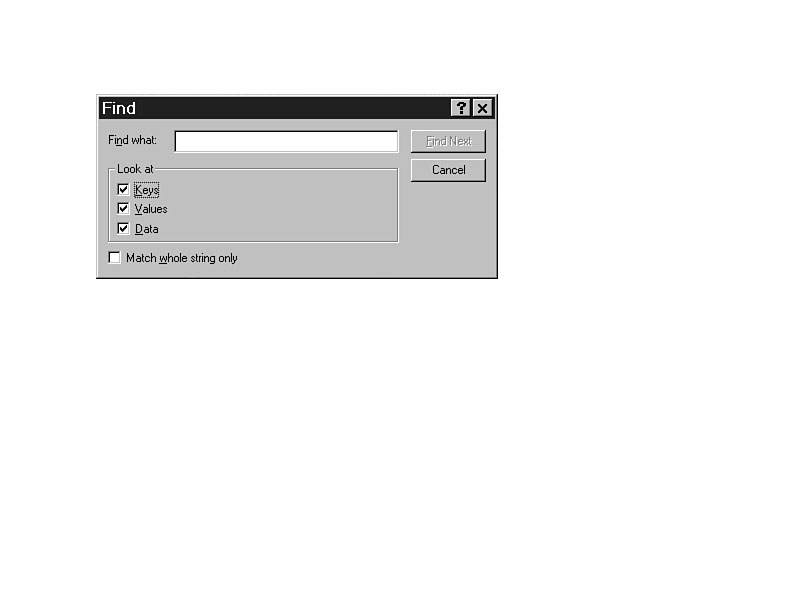
To search the Registry, select Edit | Find, press Ctrl+F, or right-click the left pane. Select the type of data to search for, whether to restrict the search to the full string, and the string to be found.
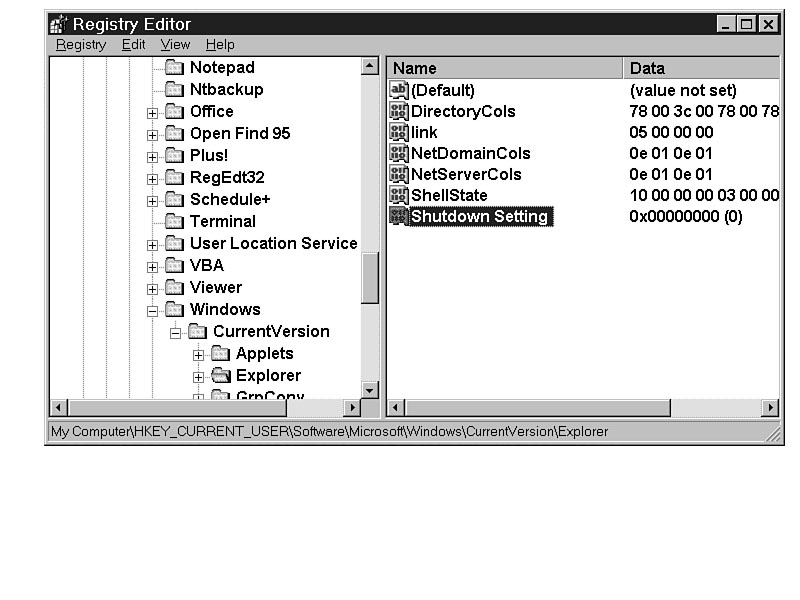
For example, if you want to find the Shutdown options, type the word shutdown in the Find what field of the Find dialog box. (See Figure 10.14.) Select Find Next or press Enter to start the search. If the search is successful, it highlights the found string. (See Figure 10.15.)
Figure
10.14. Searching
the Registry by keys, values, or data.
Figure 10.15. Search results.
If that is not the entry you seek, press F3 to continue the search.
TIP: The Find feature in REGEDIT.EXE only goes down the Registry. It will not search above the current location. Before you start the search, make sure you are where you want to start. If you want to search the entire Registry, start at My Computer. If you want to search from another location (to restrict the scope of the search), highlight that location prior to starting the process.
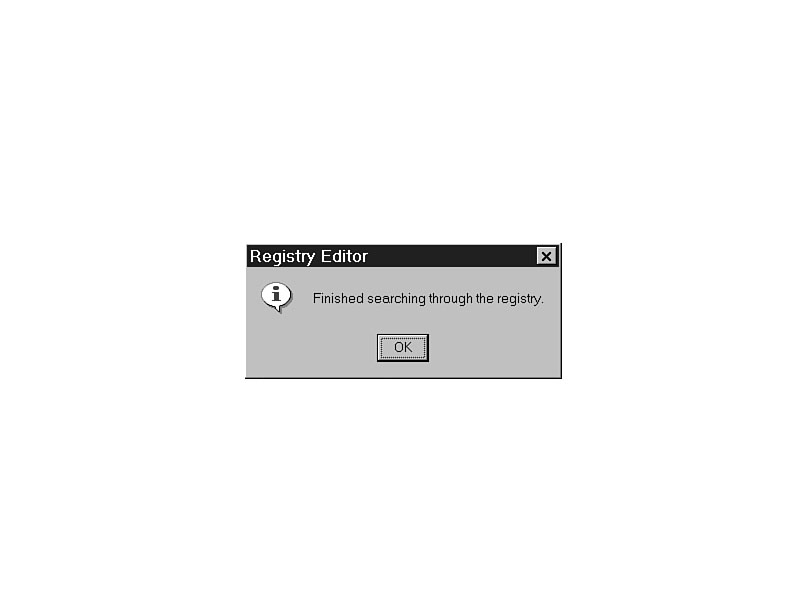
If the search is unsuccessful, the dialog box in Figure 10.16 appears, indicating that the search has been completed. Upon confirmation, REGEDIT.EXE returns you to the last highlighted location.
Figure 10.16. Unable to find data in the Registry.
Exporting Registry Data
With REGEDIT.EXE, it is easy to export a key, handle key, or even the whole Registry to a file that can be edited with a text editor. To export the Registry as a text file, select the key and use Registry | Export Registry File, which invokes the dialog box shown in Figure 10.17.
Having this data as a text file makes it easier to troubleshoot. You can open a broken Registry and use a document-comparison feature of a word processor to compare it with a working Registry.
Additionally, you can export the software key in HKEY_LOCAL_MACHINE, add new software, and compare the current settings with the previous settings to determine what the software
Figure 10.17. Exporting the Registry with REGEDIT.EXE.installation did.
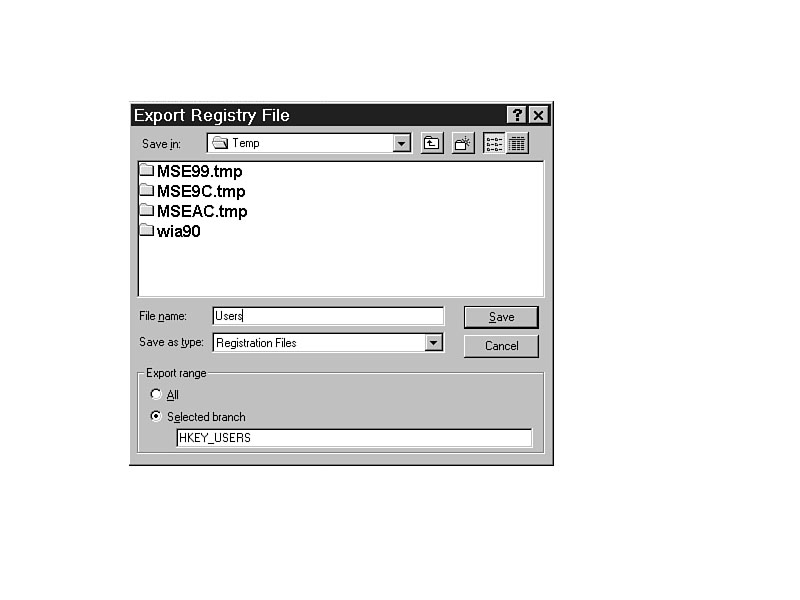
The filename entered automatically has an .REG extension and can be easily
edited. You can use a word processor, Notepad, WordPad, or any other editor you choose.
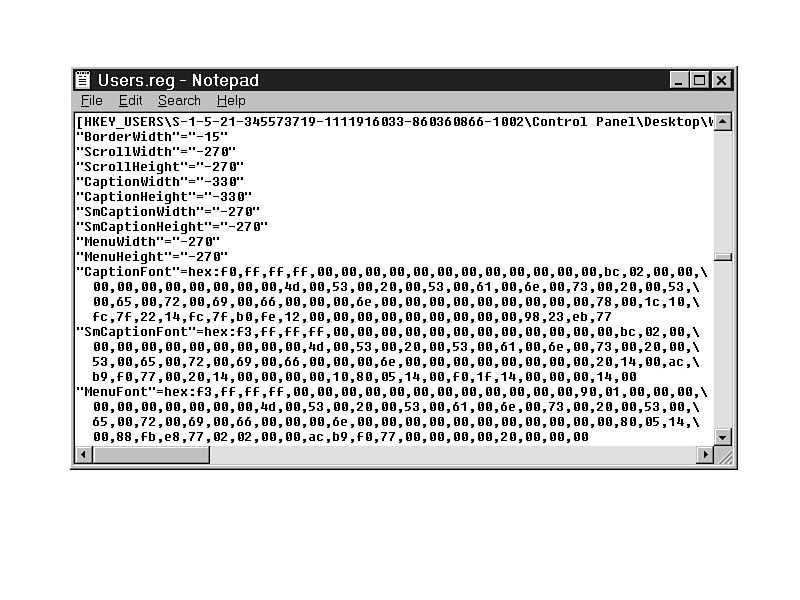
The contents of the file are illustrated in Figure 10.18. Notice the .REG
extension (in the title bar) that was added by REGEDIT.EXE.
Figure 10.18. The contents of the exported Registry key.
Of course, because this data is shown and edited as text, it is possible to use common
word-processing techniques (cut/copy and paste) to update the values and data. You
can use the document-compare feature to compare the Registries, and easily change
the one with differences.
The exported data can be confusing to read. As you can see in Figure 10.18, every
alphanumeric text string is contained in quotes. Table 10.2 is a legend of the other
conventions used by the document.
Table 10.2. .REG legend.
| Convention | Description |
| [Keyname] | Handle key, key, and subkeys |
| "Valuename"= | Value Name |
| @= | Default value for key |
| ="data" | String data |
| =hex: | Binary data in hexadecimal format |
With the information in this table, you should be easily able to browse, read, understand, and edit the Registry with an exported text file.
WARNING: Be careful. Just because something is easy doesn't mean you should do it. Incorrect entries in the Registry can make it unstable or unusable. Be very careful about editing the text file and importing it back into the Registry.
Importing a Registry File
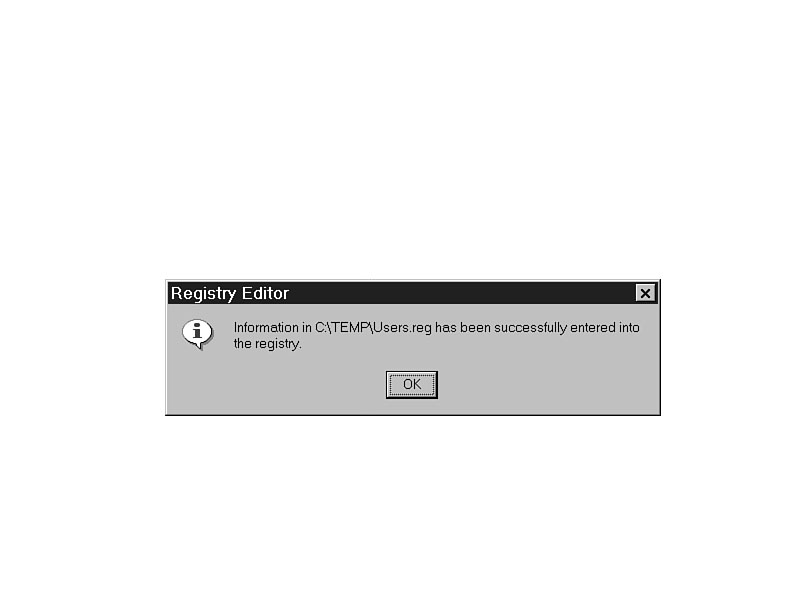
After the .REG file has been edited or updated, it can be swiftly imported into the Registry. Select the key where the file will be imported, and using the Registry | Import Registry File menu item, select the new file. It overwrites all the current entries and updates the Registry. If this action is successful, you will see the dialog shown in Figure 10.19.
Figure 10.19. The Registry is updated with the imported .REG file.
When would you use the Export and Import Registry File functions?
- As a rudimentary backup procedure--It allows you to back up the entire Registry
to a text-based file that you can easily transport to a new system.
- To duplicate entries from one system to another--Be very careful; some entries
are user- or machine-specific, and if they are copied to another system, the system
might become unstable or unusable.
- Making the same change for many people--Rather than manually entering the same information over and over, import a .REG file. This is faster and results in fewer errors. Just make sure the information is correct before you duplicate it.
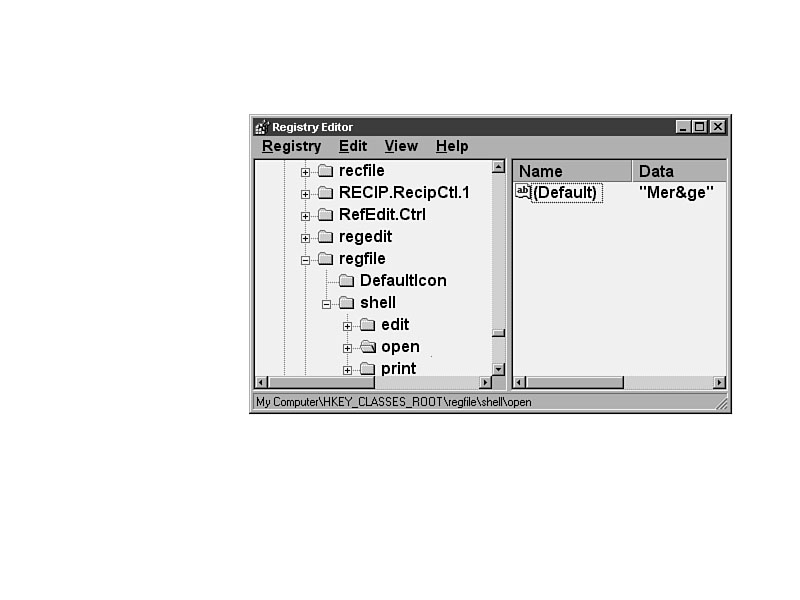
WARNING: Another way to import the data from a .REG file into the Registry is to double-click it. If you double-click a .REG file, it will immediately write the data into the currently open Registry. That may have disastrous results. An unsuspecting user may double-click the file as a means of opening it for editing. Upon doing so, the Registry is currently updated, with no option for undoing the process. As a safeguard, consider removing the association between the .REG file and the REGEDIT.EXE. When you right-click the .REG file, it gives you an option to merge the file (into the Registry), but none to "Open with..." To remove the association, search the HKEY_CLASSES_ROOT for "regfile." Expand the key (as shown in Figure 10.20), and remove the "open" key from the "shell" key. By doing this, you will restrict the user from importing the .REG file with the context-sensitive menu or by double-clicking the .REG file. The user will still have the opportunity to merge the data using the menus inside REGEDIT.EXE, but will be protected from making a mistake with the file.
Figure 10.20. The association for a .REG file is in the Registry.
Summary
REGEDIT.EXE will do most of the editing functions necessary to most people. Its easy-to-use features, speed, and convenience make it a great choice for anyone needing to edit the Registry.
If you could use it to edit REG_MULTI_SZ entries and REG_FULL_DESCRIPTOR entries, and had the read-only mode and security of REGEDT32.EXE, REGEDIT.EXE would probably be the choice of most system administrators.
Because of the feature mix between REGEDT32.EXE and REGEDIT.EXE, most administrators will use both, and you should, too.


©Copyright, Macmillan Computer Publishing. All rights reserved.