


Troubleshooting and Configuring the Windows NT/95 Registry
- 38 -
Offline Search and Replace
The ability to search the Registry is one of the most important functions you can have. With REGEDIT.EXE in both Windows 95 and Windows NT, you can search for string data in the keys, value names, and the actual data. With REGEDT32.EXE in Windows NT, you can only search for the key names. There's room, therefore, for a third-party search tool that will enhance the search process. Registry Surfer (RegSurf) is one of those tools.
RegSurf 1.01 is a shareware tool included on the CD-ROM with this book, and is produced by ISES. It is an excellent example of a Visual Basic add-on to improve current functions and increase the capabilities of a program.
Using RegSurf
RegSurf is an application independent from either Registry editor included with Windows NT or 95. Launch it from the Start menu or from the program's directory, and you will get the opening dialog box, as pictured in Figure 38.1.
Figure 38.1. The RegSurf opening dialog box.
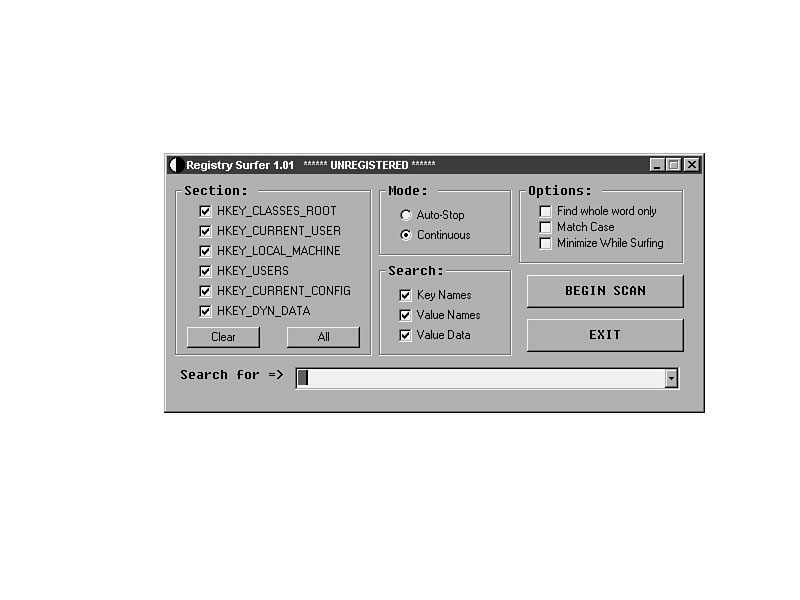
Selecting the handle keys that you want to search through is the first step. You
can search through any of the handle keys for information. Registry Search and Replace,
covered in Chapter 37, "Increasing the Utility of REGEDT32.EXE with
Additional Searching Tools," only allows you to search in some of the keys.
Searching in all the handle keys is useful so you can work with the data in the format
that you want. Obviously, if it is in HKEY_CLASSES_ROOT, it will also be
in HKEY_LOCAL_MACHINE. One of the best parts of selecting all of the handle
keys is that you will quickly see the relationship between the different keys.
The next step is to choose the mode that RegSurf will run in. Auto-Stop mode pauses after each successful search of a string. Continuous mode shows each time the data is found, and then continues. If you are looking for a specific location with your search, you would probably use the Auto-Stop mode. If you wanted to find all the instances of a particular entry, it would make more sense to use Continuous mode.
Select what type of data to search, and then set the data-specific options of Find whole word, Match Case, and Minimize While Surfing. If you set it to minimize while surfing, it will run about twice as fast as it would in full screen. It also has a cool animated logo going during the search.
Type in the data that you will search for, and click Begin Scan. The drop-down list will display the last 10 values you searched for, so if you are recreating a search, find it in this list.
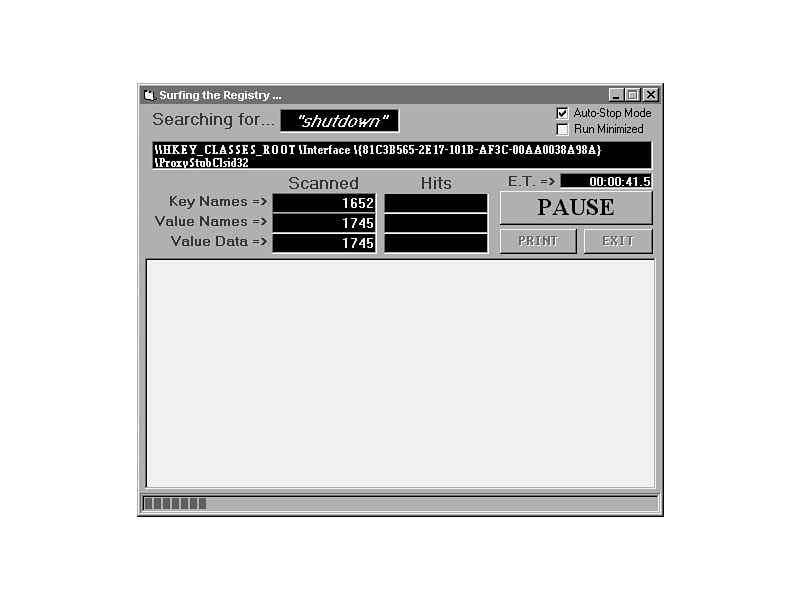
Figure 38.2 shows a search in Auto-Stop mode, looking for "shutdown." The ET is the elapsed time of the search, and you can see running statistics of the number of keys, values, and data strings that have been examined.
Figure 38.2. RegSurf search in progress.
When a match is found, the path to the match is shown on screen, as pictured in Figure
38.3.
Figure 38.3. A RegSurf successful search.
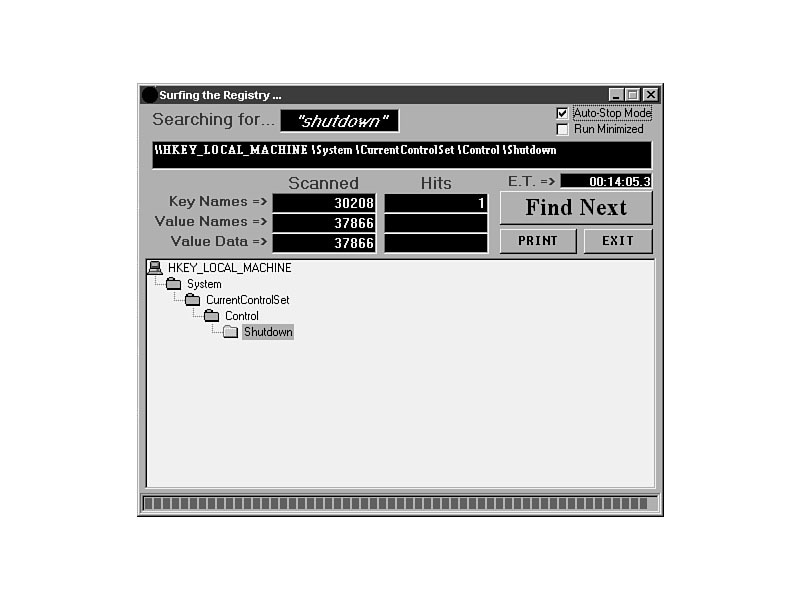
With a search in RegSurf, it is easier to see the results and the key location than
it is in REGEDIT.EXE or REGEDT32.EXE. Select Find Next to continue
the search. If there are additional entries, they will show in the results window.
If not, the program will tell you it is done, as shown in Figure 38.4. Notice the
number of Registry entries on this Windows 95 machine. It took just under 15 minutes
to search through over 31,000 keys and 43,000 values.
The ability to print the results is also a nice touch, and the lack of the ability to jump to the key makes printing particularly important.
If you choose to run the search in minimized mode, it will take only one-third to one-half as long. Figure 38.5 shows the results of the search if you select the Minimize While Surfing option on the opening screen.
Figure 38.4. The search is complete.
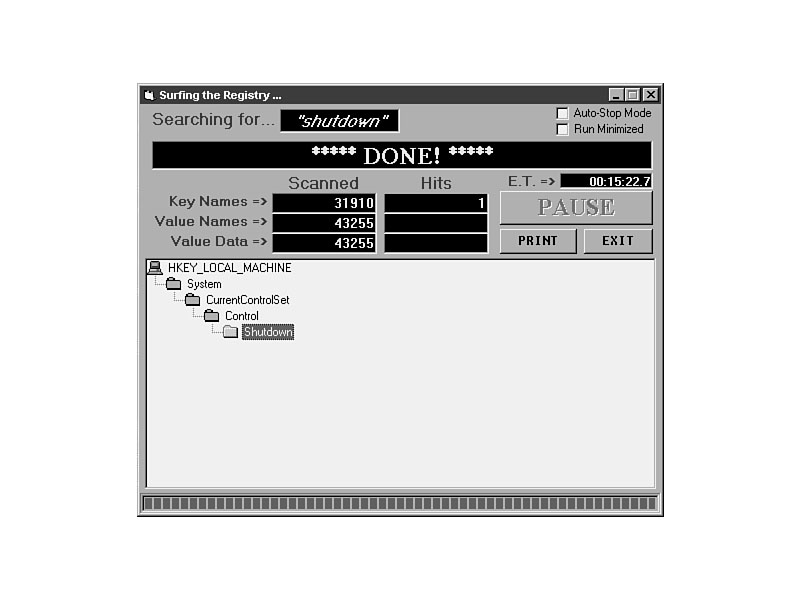
Figure 38.5. Optimum search speed attained while application is minimized.

It took only about five minutes for the search to complete when While Minimize Surfing
is chosen. That's different, however, than simply minimizing it after starting. If
you do not select Minimize While Surfing, and then you minimize it later, it will
interrupt you and your screen by bringing RegSurf to the front to notify you.
Summary
The Registry Surfer is a nice tool for doing extra searches in the Registry. The search tool is quite fast, it gives you a lot of options, and the ability to print the results is particularly nice. Its biggest drawbacks are the requirement to have Visual Basic 4.0 available and the lack of a feature to jump to the location you just found.
The Registry Surfer is fast, easy, and works very well. Use it to expand your searching capabilities in the Registry.


©Copyright, Macmillan Computer Publishing. All rights reserved.