


Troubleshooting and Configuring the Windows NT/95 Registry
-33-
Managing Windows 95 Users with System Policy Editor
Windows 95 was the first of the Windows operating systems with System Policy Editor. It is an outstanding program that gives a tremendous amount of capabilities to administrators, who can now control Windows 95 systems across the network. The System Policy Editor in Windows NT Server 4.0 has a few extra features, but, unfortunately, it will not create policy files that are compatible with Windows 95. The only way to create compatible policy files is to use the Windows 95 System Policy Editor.
WARNING: Even if you copy all the files from the Windows 95 CD for its version of System Policy Editor, you cannot use the 95 Editor inside NT 4.0. The program will launch, and you can make all the necessary settings, but the policy file cannot be saved. If you try, you will get an error: "An error occurred writing the Registry. The file cannot be saved."
Using Template Files for Windows 95 with System Policy Editor
The template files for Windows NT and Windows 95 have exactly the same format and syntax. The main differences are based on the differences in the Registry. Windows 95 has some entries that NT doesn't, and the number of entries found in NT that are not in Windows 95 is astounding. Because of the similarities between the two, and the common Explorer interface, there are also many common entries.
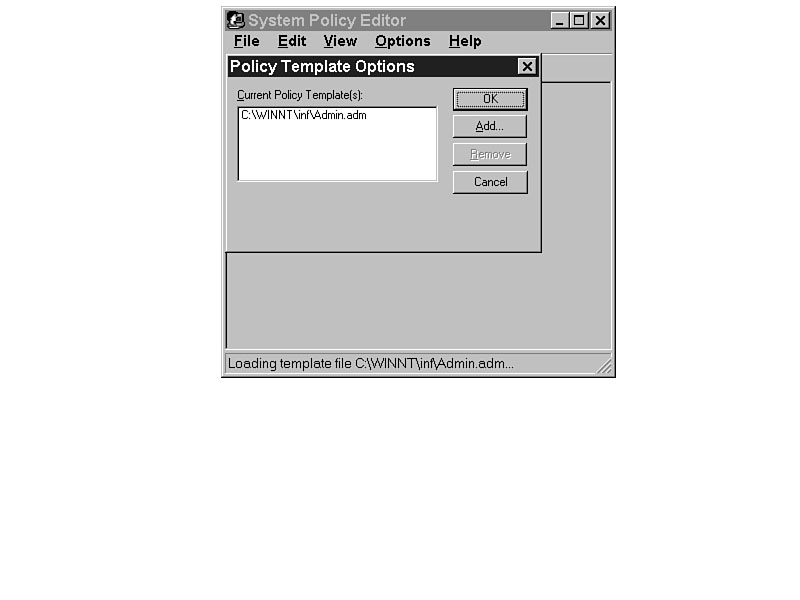
The Win95 System Policy Editor allows only one template file, ADMIN.ADM. If you ever want to add to the template, you need to edit that file. Figure 33.1 illustrates the fact that the files are compatible, and ADMIN.ADM (without modifications) will load, and could even be used, in the System Policy Editor for Windows NT.
Figure 33.1. ADMIN.ADM will also load into the Windows NT System Policy Editor.
If there is a problem loading the template, you would get an error similar to the
one shown in Figure 33.2. The error dialog box lists the line number and the type
of problem. The challenge is simply in the size of the file. Without any additions,
ADMIN.ADM already has 1122 lines (951 lines for the policy, and the rest
for text strings).
TIP: If you open ADMIN.ADM into Notepad, there is no line numbering feature. If you open it into Word or WordPerfect or WordPro, you can set line numbering. Unfortunately, it will number every line, whether it is the start of a new paragraph (following a hard return) or wrapped text. There is no way to turn off text wrap, as there is in Notepad. To solve that problem, change the layout of the page to Landscape, and the margins will be wide enough to allow the entire line of text on one line, without wrapping the text to the next line. Line numbering will then work very well for this purpose.
Figure 33.2. Error dialog when opening an edited ADMIN.ADM.
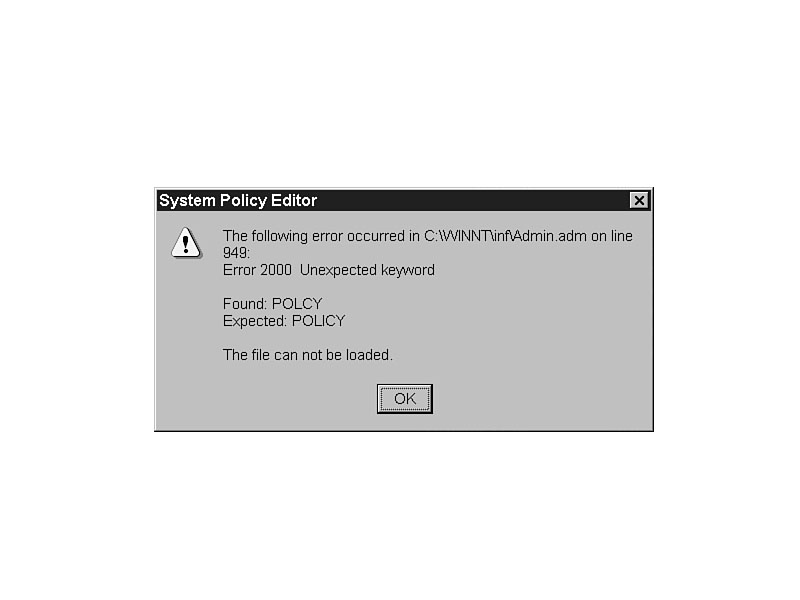
Imagine having to find the error by the line number. In this case, it wouldn't be that hard to fix in a word processor, searching for the word "Polcy" and replacing it with "Policy." Other errors may not be so simple.
NOTE: One of the major advantages of the System Policy Editor in Windows NT is that it allows multiple .ADM files. Each of the files is independently loaded, and so they are smaller. If there is an error, it is easier to find and correct. If the policy files were compatible between NT and 95, for Windows 95 users on your network, you would load COMMON.ADM and WINDOWS.ADM. They are almost exactly the same as ADMIN.ADM, with only two minor differences, both regarding automated logon to a network.The Run Once command and the Run Services commands are in ADMIN.ADM but not in COMMON.ADM or WINDOWS.ADM. If they are particularly important to you, you can edit the files and add them. The Run Once command could launch functions like an application installation, or a request for data. The Run Services command starts services that are set in the Control Panel to Manual instead of Automatic. Other than these examples, all of the rest of the entries that are in ADMIN.ADM are also in the System Policy Editor for Windows NT.
Which Policy File Do I Use?
Windows NT systems look, by default, to NTCONFIG.POL in the NETLOGON share for their policies. Windows 95 systems also look in the NETLOGON share for CONFIG.POL. There are no differences in the content of the file, just in the file structure. Both policy files may exist in the NETLOGON share at the same time, and each will be accessed by its respective systems.
TIP: Windows 95 systems connected to a NetWare network automatically look for the CONFIG.POL file in the PUBLIC share on the server. There are no settings required; it is automatic.
If you would like to have the policy file in a different location, you can change the location by changing the Registry through System Policy Editor. On a workgroup network, where there is no central server, this setting would be required to implement policies.
To change the location and/or the name of the file to look to for policies, use the following steps. If you have not yet installed the System Policy Editor files from the Windows 95 CD-ROM, see Chapter 28, "System Policy Editor: Understanding Policy Files."
- 1. Open the Windows 95 System Policy Editor.
2. Open the local Registry with File | Open Registry.
3. Double-click on the Local Computer.
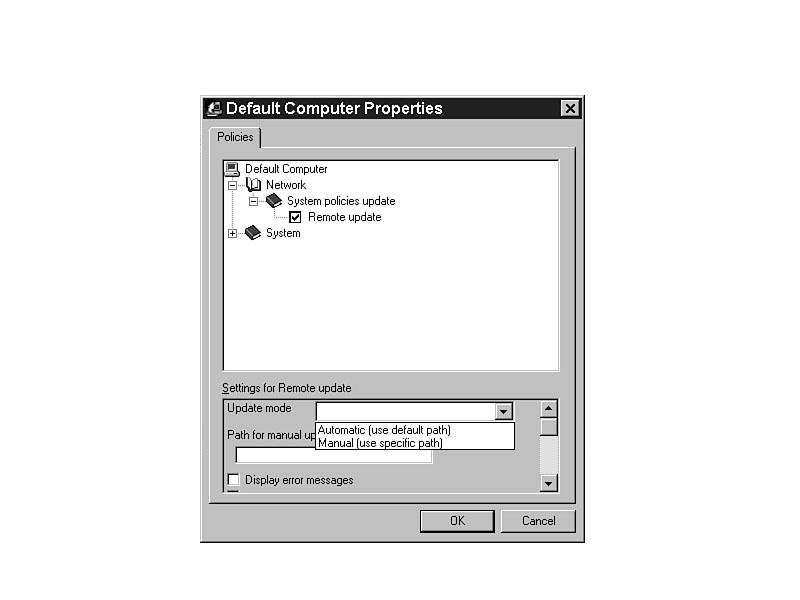
4. As shown in Figure 33.3, expand the Network and System policies update entries.
5. Select Remote update.
6. Choose Manual from the drop-down list for the Update mode.
NOTE: The setting is a little deceptive, in that it says "Manual" in the Update mode. There is nothing manual about the update. The Registry is automatically updated at logon, but it just uses a different path.
Figure 33.3. Setting a location for CONFIG.POL.
- 7. Enter the path for the policy file in the \\systemname\share\CONFIG.POL
format.
WARNING: Unless you insert the name of the file, the system will not recognize it. Be very specific.
8. Select OK.
9. Save the changes.
In turn, open the Registry of every machine with File | Connect and repeat steps 3 through 9 for each one.
Allowing Policies to Update Windows 95 Systems
In order for a Windows 95 system's Registry to be updated by System Policy Editor, that system must have Remote Administration enabled, and it must be running the Remote Registry Service.
Add the Remote Registry Service
Remote Registry Service does not automatically get installed with Windows 95. To install the service, which is available only on the CD-ROM, do the following:
- 1. Go to Control Panel | Network and choose Add.
2. Select Service and click Add.
3. Instead of using any of the services listed, choose Have Disk and browse for the \Admin\Nettools\Remotreg directory.
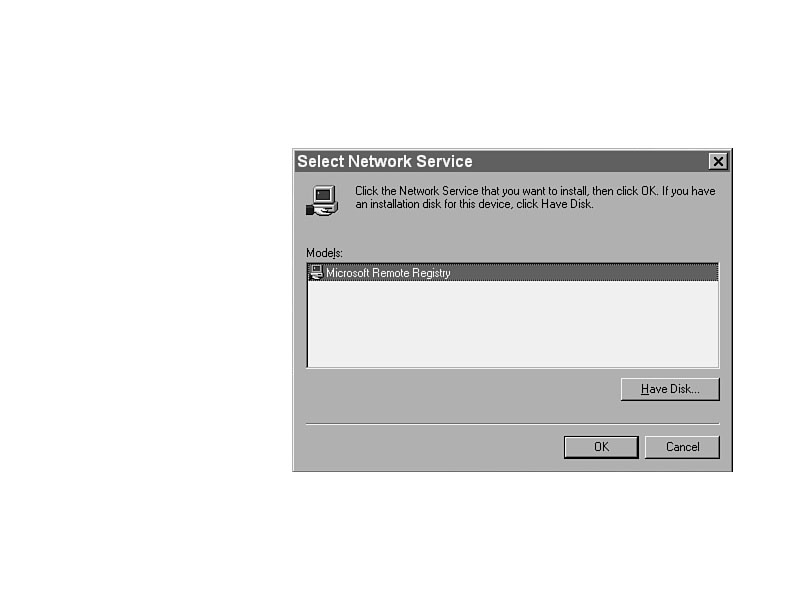
4. Confirm the location and choose OK to select the Remote Registry Service. (See Figure 33.4.)
5. Restart your system.
Figure 33.4. Setting up the Remote Registry Service.
Set the System to User-Level Access Control
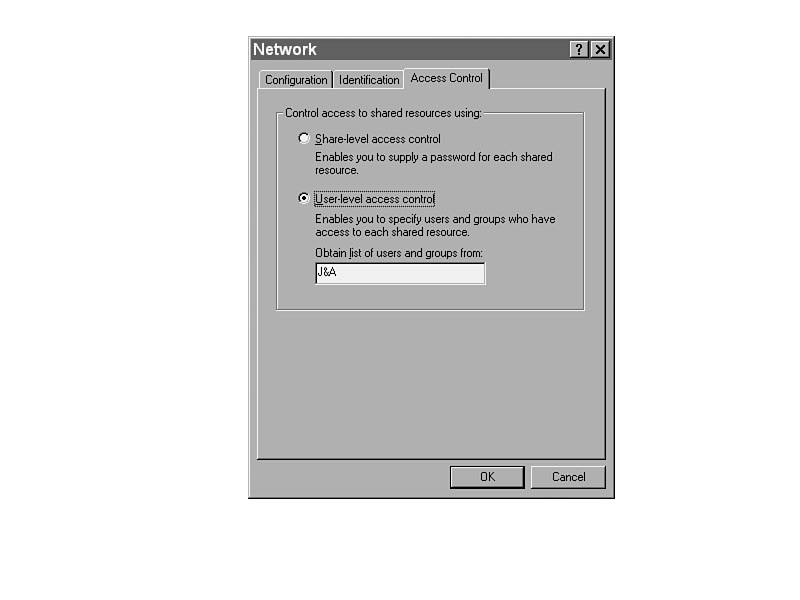
After you install the Remote Registry Service, User-level access control must be enabled. Open the Network section of Control Panel. On the Access Control tab, select User-level access control, as shown in Figure 33.5, and supply the name of the domain where the administrators are. (This is where the list of groups and users are for the Remote Administration Service.)
Figure 33.5. Setting User-level access control.
Start the Remote Administration Service
In order to start the Remote Administration Service on the Windows 95 system, go to the Passwords section of the Control Panel. Select the Remote Administration tab and click Enable Remote Administration on this server. (See Figure 33.6.)
Figure 33.6. Setting up Remote Administration on a Windows 95 system.
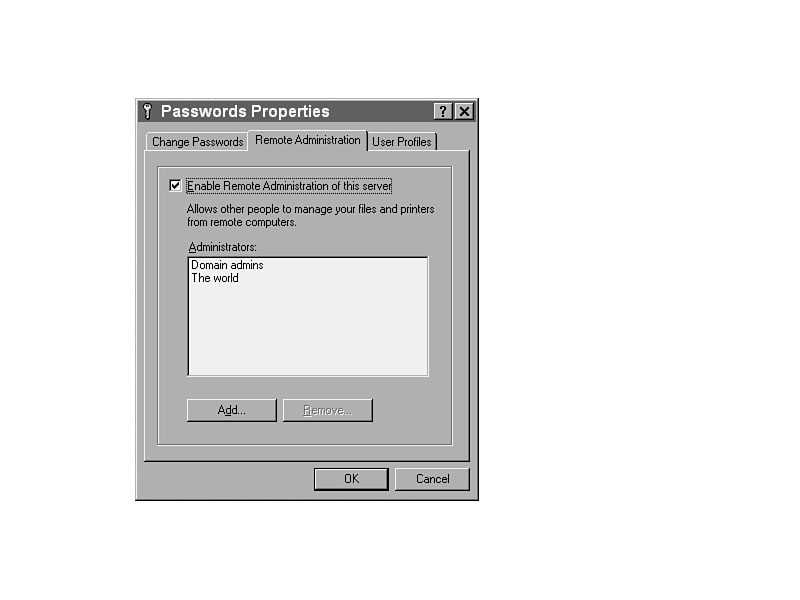
NOTE: Even though it says "server," any Windows 95 system can be edited this way. When remote functions are allowed, the system is its server processes.
Add the users and groups who will be allowed to edit the Registry. The ones that are the most critical are the Administrators group and Administrator. After confirmation, the system will need to be restarted, and then it will allow remote editing and the Windows 95 Registry can be updated across the network by System Policy Editor.
SOLUTIONS: Why is it so difficult to set up Windows 95 machines for use with System Policy Editor, and so easy for Windows NT systems? Windows NT was designed from the ground up to be a networked system, allowing network access, management, and control. Windows 95 was designed as a stand-alone system, with networking as an add-on. If you run NT as a stand-alone system, the extra networking functions and procedures can be cumbersome. If you run the NT system on a network, the seamless nature of the networking is a great benefit. Windows 95 appears to have been designed as a stand-alone machine, and the processes streamlined for optimum performance in that environment. Adding networking is very easy, but allowing network management is quite cumbersome, with no automated way of changing all the systems on a network at one time. Each must be changed manually. If you are setting up several new systems, consider adding the remote management functions on one system, and then clone it, as shown in Chapter 36, "Cloning Windows 95 Systems."
Computer-Based Settings in ADMIN.ADM
Many of the settings for Windows 95 systems are different than those of Windows NT. There are controllable features that NT simply doesn't have. Most of the entries in ADMIN.ADM are based on those unique features. The features that are the same as Windows NT, and share the same Registry setting, are in the NT template called COMMON.ADM. The entries that are the same in Windows 95's ADMIN.ADM and Windows NT's COMMON.ADM are listed in Listing 33.1 (for computer-based settings) and Listing 33.2 (for user-based settings), and are discussed in detail in Chapters 31 and 32. Detailed descriptions are presented here for the unique settings only.
Listing 33.1. Computer settings in ADMIN.ADM that are also in COMMON.ADM.
Default Computer/Network/Logon/Logon banner
Default Computer/Network/SNMP/Communities
Default Computer/Network/SNMP/Permitted Managers
Default Computer/Network/SNMP/Traps for `Public' Community
Default Computer/Network/Update/Remote Update
Default Computer/System/Run
Listing 33.2. User settings in ADMIN.ADM that are also in COMMON.ADM.
Default User/Control Panel/Display/Restrict Display Control Panel
Default User/Desktop/Wallpaper
Default User/Desktop/Color Scheme
Default User/Shell/Custom Folders
Default User/Shell/Restrictions
Default User/System/Restrictions/Disable Registry Editing Tools
Default User/System/Restrictions/Run only allowed Windows applications
For more details on these entries, see the corresponding entries in Chapters 31 and 32. The balance of the settings in this chapter are unique to ADMIN.ADM and Windows 95 systems and users.
Network/Access Control/User-Level Access Control
With this setting, Windows 95 systems will look for logon validation from a Windows NT server or NetWare server, as shown in Figure 33.7. A single password would then allow the user access to shares on the network based on user rights assigned at the server. The default is share-level access control, where a password is assigned to every share.
Figure 33.7. Setting access to the network based on user-level rights.

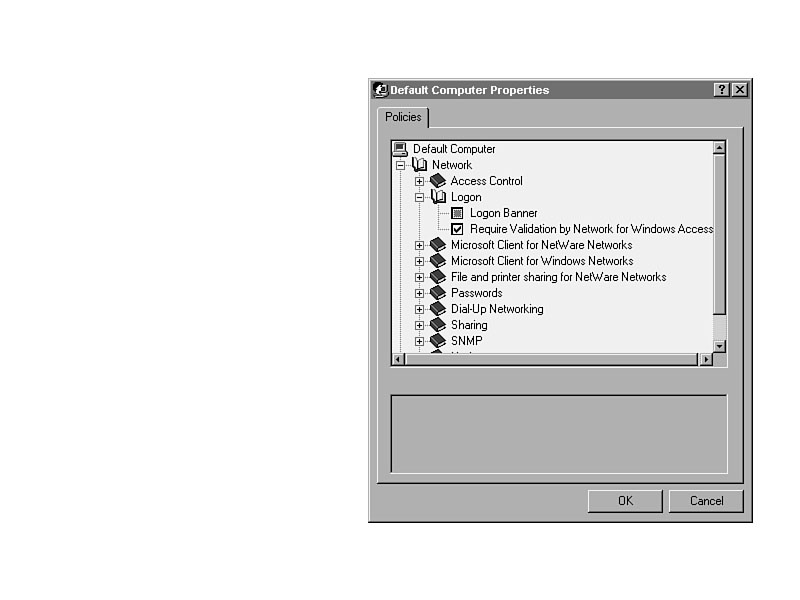
Network/Logon/Require Validation by Network for Windows Access
Without this setting shown in Figure 33.8 turned on, users could press Esc at the logon dialog box and enter Windows NT, even though they could not access network resources.
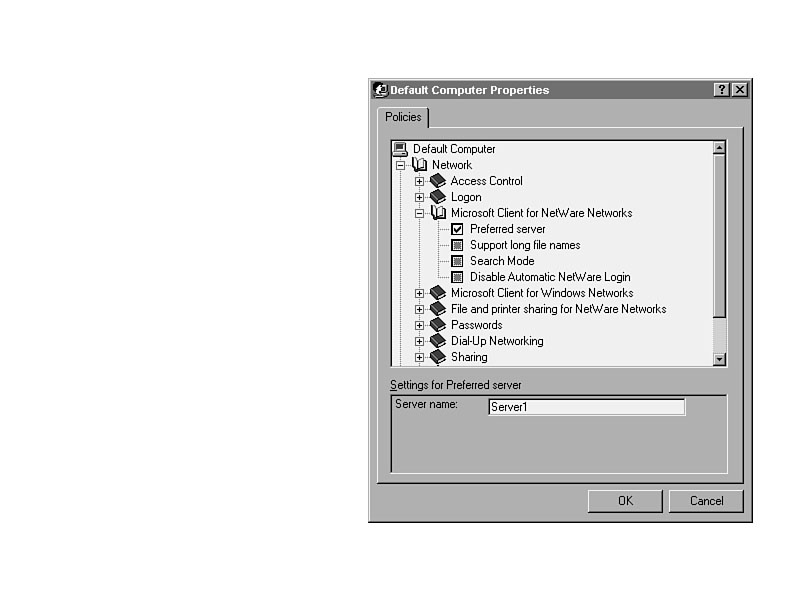
Figure 33.8. Preventing the circumvention of network logon.Network/Microsoft Client Service for NetWare Networks/Preferred Server
A preferred server in a NetWare environment is the one that the client wants to log
in to. If a preferred server is not specified, the client will log in to the nearest
login NetWare server. That may affect the login scripts, shares, and much more. Set
this, and the network connections to the NetWare network will be much more consistent
and stable. Enter the name of the preferred server in the entry box as shown in Figure
33.9.
Figure 33.9. Choose your preferred server.
Network/Microsoft Client Service for NetWare Networks/Support Long Filenames
Long filenames are supported with a Namespace in Netware 3.12, and they are supported natively in NetWare 4.x. As shown in Figure 33.10, you can choose on which type of server to support them. If the Windows 95 system is not set to support long filenames, even with name space installed, it will not be allowed to use them on files saved on the server.
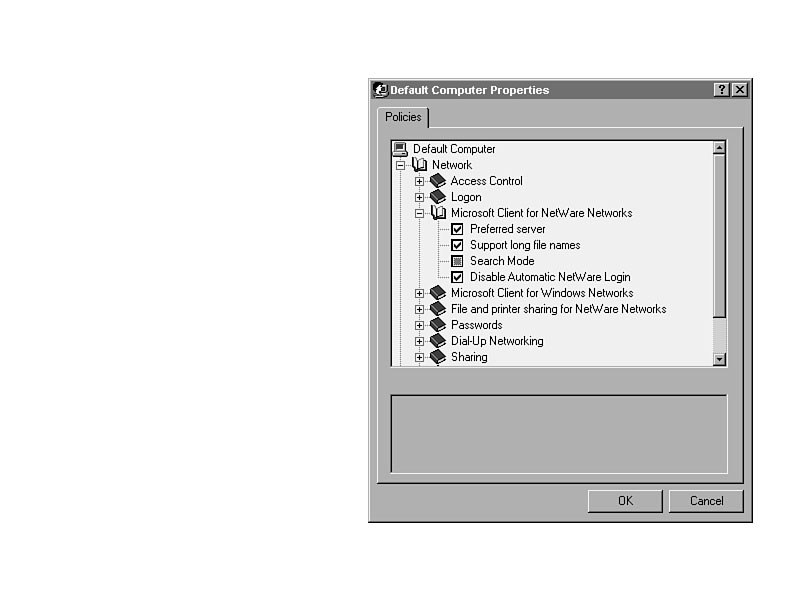
Network/Microsoft Client Service for NetWare Networks/Disable Automatic NetWare Login
With the Client for Windows networks installed along with the Client Service for NetWare, passwords are passed between them. The password used at the Windows logon would then be used as the NetWare password, and if the password is correct, you would also be logged into NetWare. Turning this off, as shown in Figure 33.11, will force the user to log into NetWare independently.
Figure 33.10. Setting up long filename support in Windows 95 for NetWare servers.
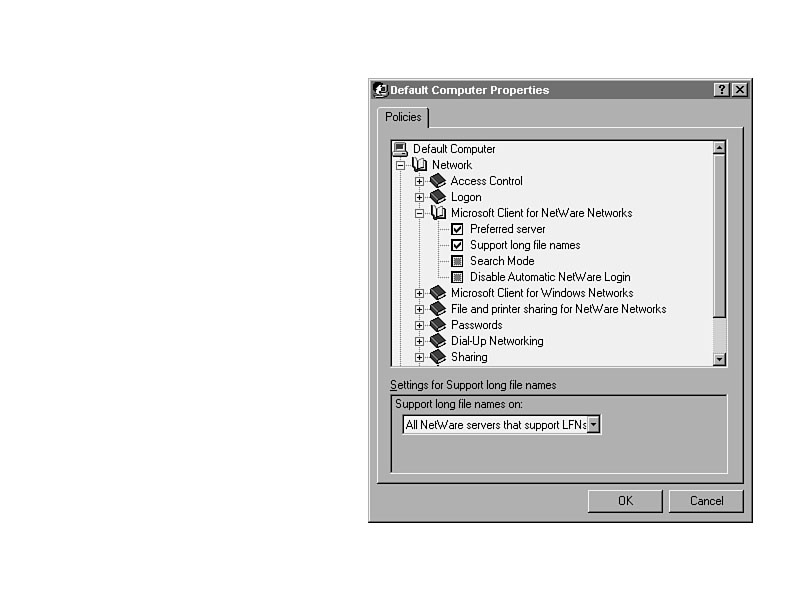
Figure 33.11. Turning off the password pass-through.
Windows 95 Network/Microsoft Client for Windows Networks/Log on to Windows NT
Be part of the Windows NT domain with the setting shown in Figure 33.12. Combined with the setting for user-level validation, logging onto a Windows NT server will provide premium security.
Figure 33.12. Forced logon to NT domain.

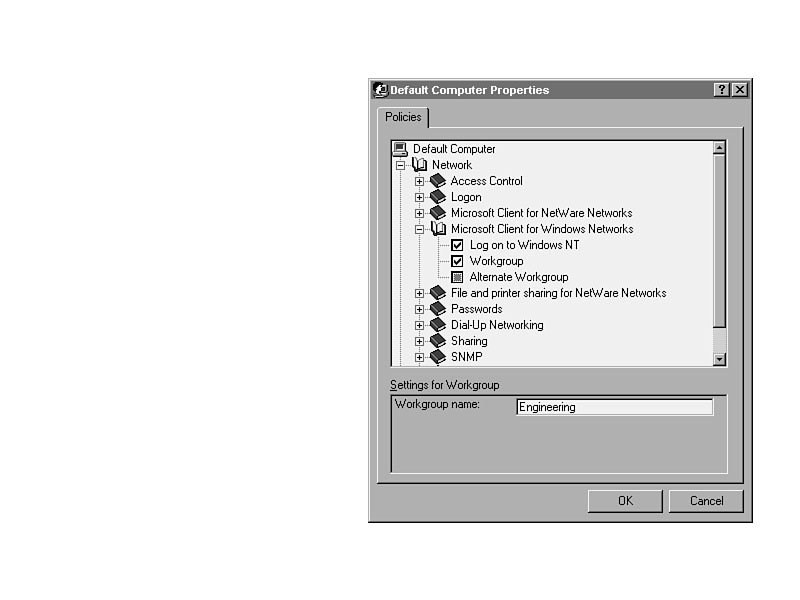
Windows 95 Network/Microsoft Client for Windows Networks/Workgroup
This setting allows you to specify the workgroup name for the Windows 95 system. Usually set during installation, workgroup names on the network may end up being very different. This setting, shown in Figure 33.13, makes it easy to standardize the names across the network, and reduce browsing time and confusion.
Figure 33.13. Setting the standard workgroup name.Windows 95 Network/Microsoft Client for Windows Networks/Alternate Workgroup
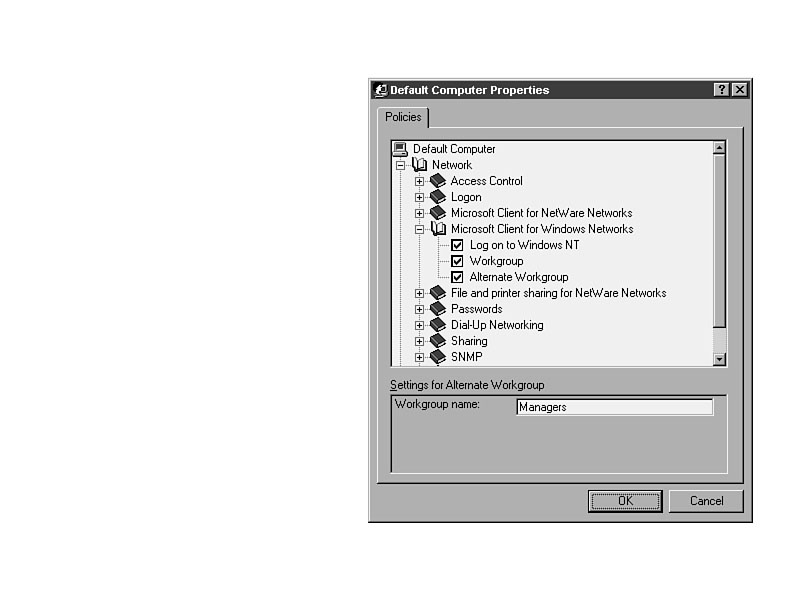
If you are the only one on the network with a particular workgroup name, usually
it is added as a workgroup of one. If this setting is turned on, as shown in Figure
33.14, you will simply join the alternate workgroup specified. This is particularly
helpful for notebook users who regularly connect to more than one network.
Figure 33.14. Add an alternate network to smooth network communi-cations.
Windows 95 Network/File and Printer Sharing for NetWare Networks/Disable SAP Advertising
SAP (Server Advertising Protocol) advertising tells other clients that you are a NetWare server, or that you have shares for NetWare clients to use. You would then show up in server lists. Turning off the advertising, as shown in Figure 33.15, will keep you from that advertisement. Advertising yourself to the rest of the network as a NetWare compatible server is the default. Hiding yourself from the network would deter most others from using your shares. Because there is little security in Windows 95, you may consider using this as a deterrence from unauthorized people connecting to your shares.
Figure 33.15. Turn off NetWare server advertising.

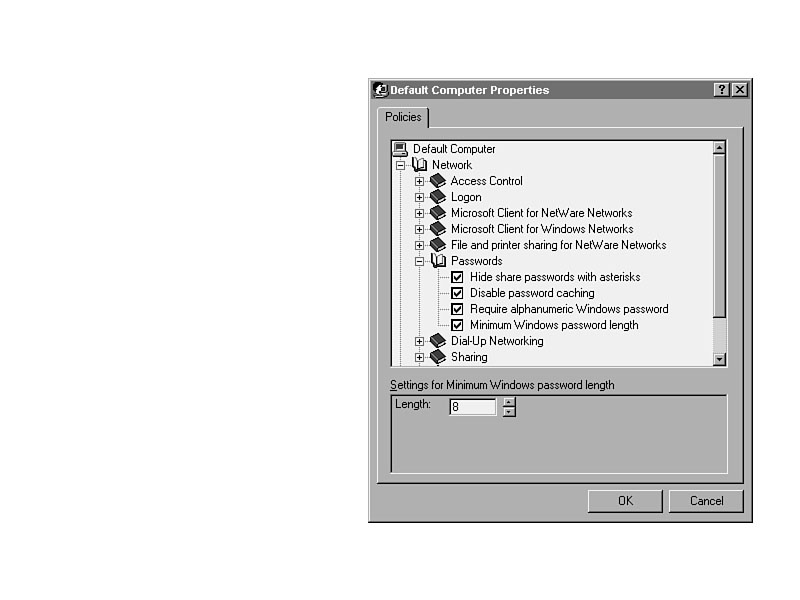
Network/Passwords/Hide Share Passwords with Asterisks
If this setting is turned on, share passwords that include an asterisks will be hidden to others. Figure 33.16 illustrates this setting, as it does the next three settings.
Figure 33.16. Password settings in ADMIN.ADM.
Network/Passwords/Disable Password Caching
Normally, Windows 95 will cache passwords, so the logon performance will be enhanced. It presents a potential security breach because it is possible to crack that file and read information from it. It also can allow a user to bypass the real validation from the server. Turn this option on to increase security on your network.
Network/Passwords/Require Alphanumeric Windows Password
This setting, in combination with the next one, strengthens your password policy. With this setting turned on, a blank password is not a valid password. It will not be accepted. Of course, this is a sound security choice.
Network/Passwords/Min Windows Password Length
You can ensure that the password is of a specific length or greater. If you specified 6 characters, the potential combinations are staggering to comprehend at 26 to the sixth power or nearly 309 million.
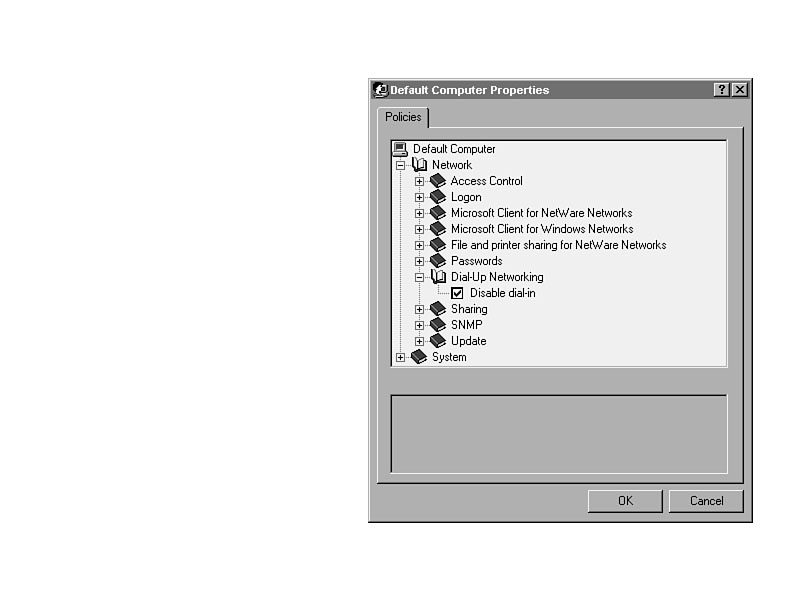
Network/Dial-Up Networking/Disable Dial-in
With Dial-up networking enabled, you can also have people dial into your system. Turn it off with this choice, shown in Figure 33.17.
Figure 33.17. Dont answer when someone calls.
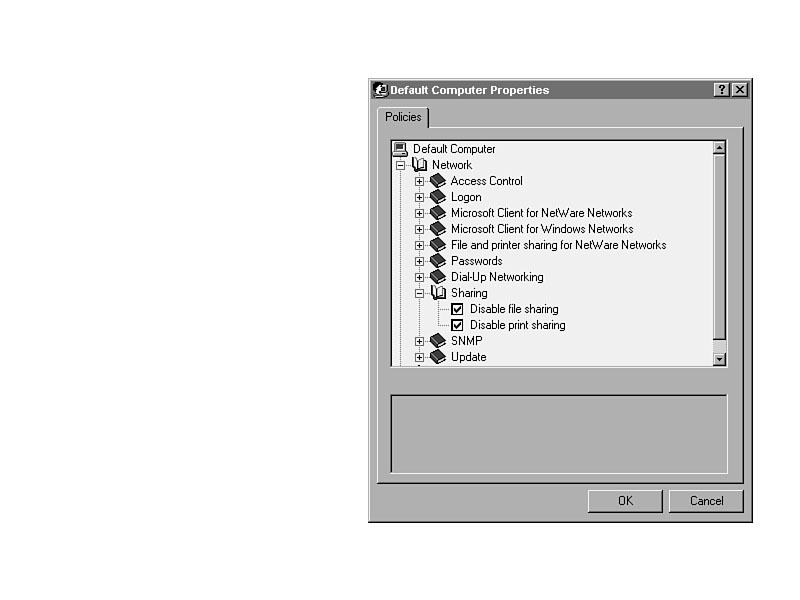
Network/Sharing/Disable File Sharing
With this setting, you will not share any files and folders with others on your network. It also means you will not hold a browse list of other shares on the network. Figure 33.18 shows the disabling of file and printer sharing.
Network/Sharing/Disable Printer Sharing
No other users on the network can share your printers with this option turned on. It improves your performance because the system does not have to share its resources with anyone else.
Figure 33.18. Disable file and printer sharing on Windows 95.
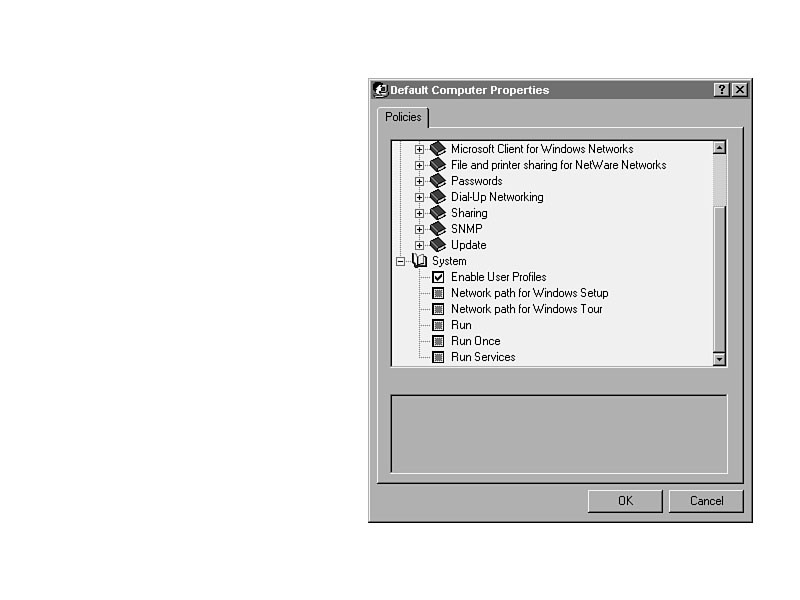
System/Profiles/Enable User Profiles
User profiles keep user information about every user that logs onto a particular system. The information is held in \Windows\Profiles\username\USER.DAT. If set correctly, you can use the same profile, or desktop settings on any Windows 95 system on the network. Figure 33.19 shows you where to enable it.
Figure 33.19. Consistent desktop settings are available with user profiles.
System/Network Path for Windows Setup
For subsequent installation of features for Windows 95, the system normally looks to the same location from which it was installed. That means that every user needs access to the original files. If you set this, as shown in Figure 33.20, you can have one set of files for all users to access. That will make administration much easier. It will also override the request to look at the local floppy disk drive or CD-ROM drive.
Figure 33.20. Where are the Windows 95 cabinet files?

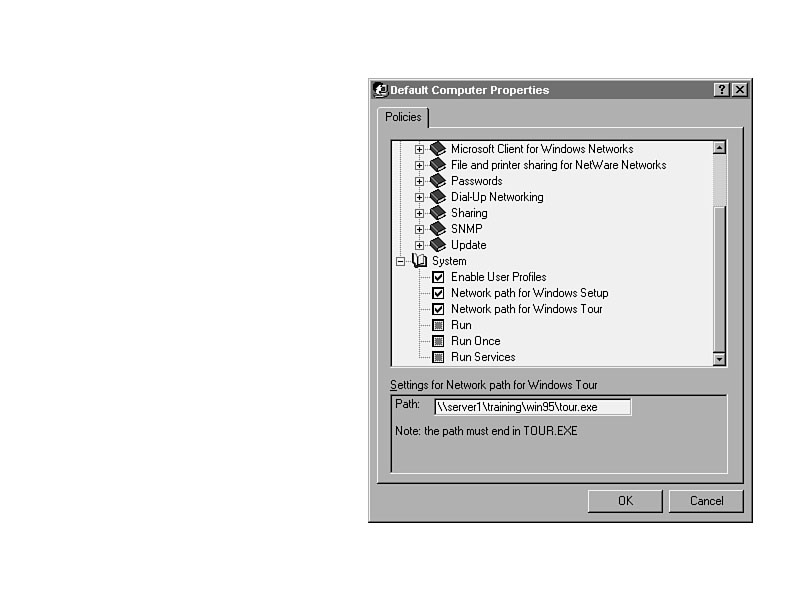
System/Network Path for Windows Tour
Windows 95 will look for the Tour (the tutorial) at the same location as the Windows 95 operating system files. Set this to a network path, as illustrated in Figure 33.21; there only needs to be one copy on the entire network. It will save a few megabytes on every system, and is well worth it because it usually only gets used once per user anyway.
Figure 33.21. Setting the central location of the Tour files.
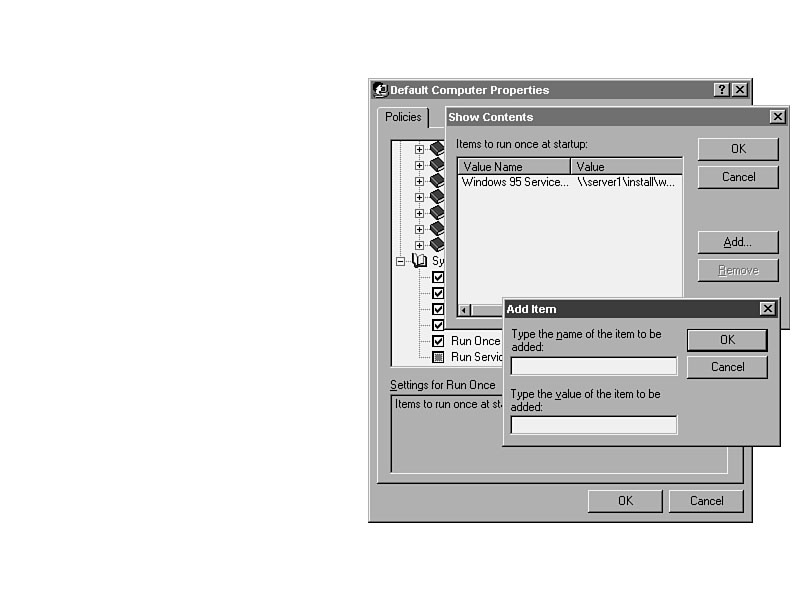
System/Run Once
Similar to the Run function that is available in both Windows 95 and NT, the Run Once command allows the system administrator to add applications that will be run, but when completed will never be run again. This is particularly helpful in upgrading applications, adding a service pack (OS update), or polling the user for input. Figure 33.22 shows the options available.
Figure 33.22. Items to be run only once on the system.
System/Run Services
Run Services allows services such as Dial-up Networking Server service to be activated at startup. No user intervention is required, making the management of the system easier. See Figure 33.23 and the dialog boxes for making the setting.
Figure 33.23. Setting services to run at startup.

User-Based Settings in ADMIN.ADM
There is much more control available for users in Windows 95 than in Windows NT 4.0. Maybe that is because Microsoft expected more novice users to use 95 than NT. Whatever the reason, if all the user restrictions in ADMIN.ADM were implemented, the user would probably quit and go elsewhere, somewhere that offered him some personal choice.
These settings allow the administrator to restrict access to features to improve security, stability, and reliability of the system.
TIP: Some people say the only stable Windows 95 system is the one that nobody touches. Much of the alleged instability comes from users playing with options. Use the System Policy Editor to restrict the users, and fewer problems with the operating system will occur. However, the downside of the restrictions are that you, as the administrator, will have to make more of the changes.
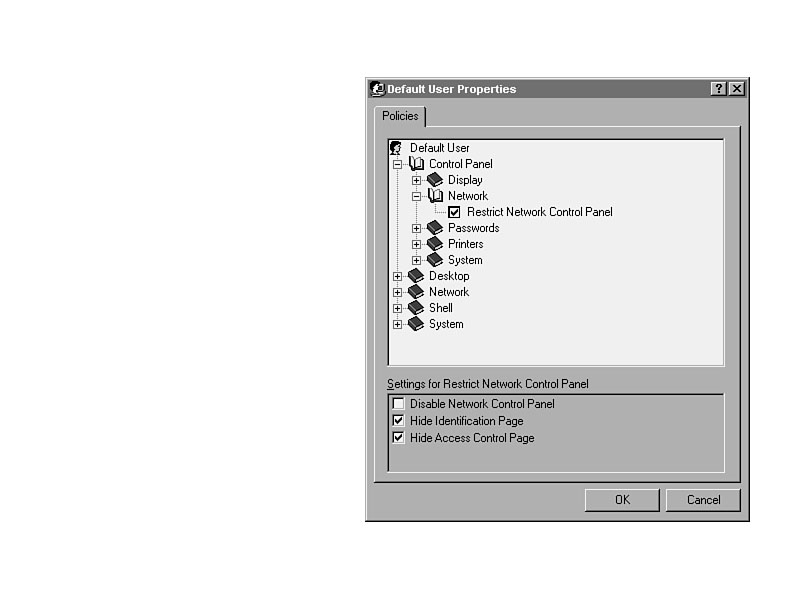
Control Panel/Network/Restrict Network Control Panel
With this setting, you can disable the entire Network Control Panel, hide the Identification tab, or hide the Access Control tab. Figure 33.24 illustrates the options. The Identification tab allows you to change the name of the system and workgroup, and the Access Control tab allows you to choose between share-level and user-level access control.
Figure 33.24. Setting levels of access to the Network Control Panel.
Control Panel/Passwords/Restrict Passwords Control Panel
If you want to restrict how users can work with the Passwords section of the Control
Panel, select this option, as shown in Figure 33.25. Several levels of restriction
are available, including restricting access to the User Profiles tab, the Remote
Administration tab, and the Change Passwords tab. Alternatively, you can completely
restrict access to this entire section of the Control Panel.
Figure
33.25. Password
Control Panel restrictions.

Control Panel/Printers/Restrict Printer Settings
Figure 33.26 shows the options for restriction of access to the Printers Control Panel applet. It can be fully restricted, or limited to changing the properties, or adding or deleting printers.
Control Panel/System/Restrict System Control Panel
Changing the settings of hardware in your system is done through the System section of the Control Panel. To ensure that your users do not change critical settings, invoke all of these options, as shown in Figure 33.27.
Figure 33.26. Restricting access to Printer settings.

Figure 33.27. System settings in the Control Panel.

Network/Sharing/Disable File Sharing and Disable Print Sharing Controls
These settings do exactly the same thing as the settings in the computer-based restrictions. The only difference is that the computer-based restrictions limit any user who is logged on the machine. These settings restrict the user, wherever he logs onto the network.
Disabling the sharing, as shown in Figure 33.28, in whichever setting, takes precedence. For example, if the system is not restricted but the user is, the restrictions will be in place. If the system is restricted, the user will be restricted, regardless of the user settings.
Figure 33.28. Disabling file and print sharing controls.

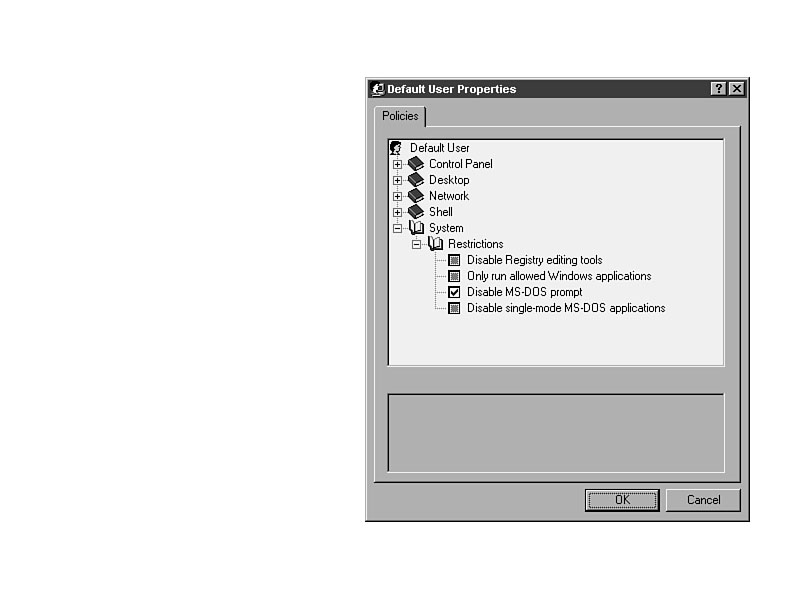
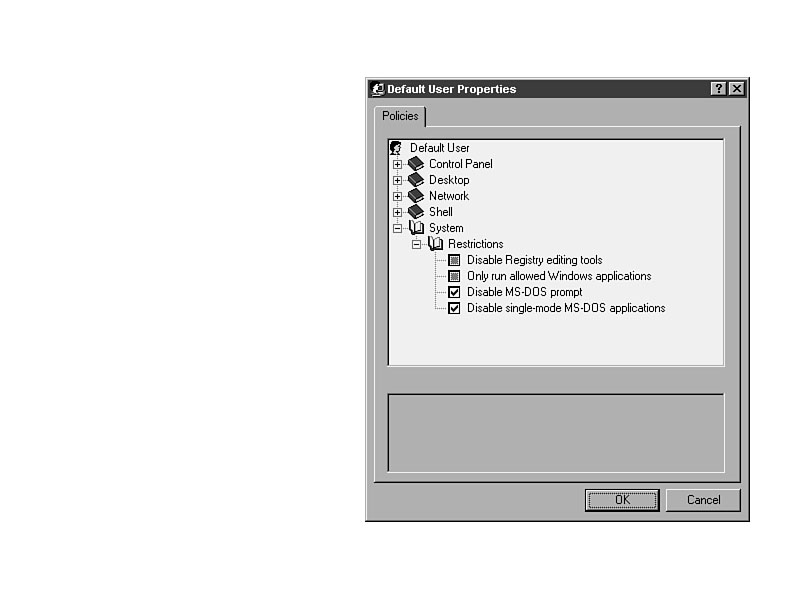
System/Restrictions/Disable MS-DOS Prompt
If your user can get to a DOS prompt, he could run DOS applications and commands that may not be permitted in your organization. This policy restricts it, according to the graphic in Figure 33.29. Select it, and the MS-DOS prompt will be disabled.
Figure 33.29. Removing the MS-DOS prompt option from Windows 95
Windows 95/System/Restrictions/Disable Single-Mode MS-DOS Apps
Certain MS-DOS apps require different MS-DOS environments, including different settings for the path, files, buffers, and drivers. Most of these applications would not work if you disabled this option as shown in Figure 33.30. The most common instance of single-mode MS-DOS apps is games. Many will not work unless special settings are made.
Figure 33.30. Restricting access to single-mode MS-DOS application settings.
Summary
The settings in WINDOWS.ADM in conjunction with COMMON.ADM would give you roughly the same capabilities as ADMIN.ADM, while allowing you to have a consolidated policy for all users, if only it worked. It doesn't, so you will have to use System Policy Editor in Windows 95 and ADMIN.ADM. The main point of all of System Policy Editor is to make necessary changes on the system, and feed them automatically to the system as a user logs on. The available changes are incredible, allowing centralized management of Windows 95 systems from a single location.


©Copyright, Macmillan Computer Publishing. All rights reserved.